
Images on the website can be added through the WYSIWYG by clicking the image button in the editing toolbar.

Once you click the image button, you will see the following options:
-
URL: You can add an image using the Media Library or by uploading a new image directly on the page using the File Browser.
Image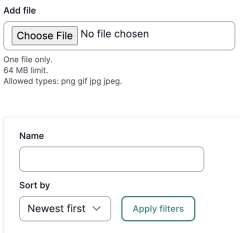
- Alternative Text: A short description of the image which is used by screen readers, and/or displayed when the image cannot be loaded. This is important for accessibility. A description like “A large green tree against a blue sky in a field.” would be a preferable alternative text option than just “tree”.
-
Click Save when you are happy with the image.
Image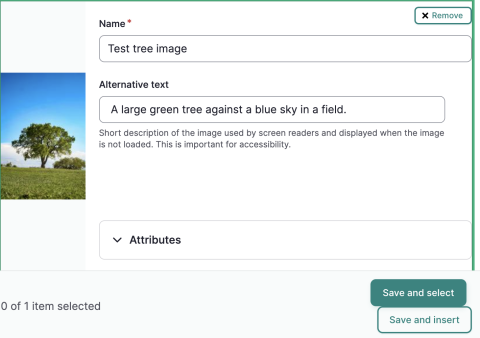
- Align: Select the alignment you would like the image to have. For example: if you select Right, the text will wrap around the image while the image displays on the right.
-
Caption: Select the image and click leftmost button to enable the caption field. This can be used for photo credit and/or description of the image.
Image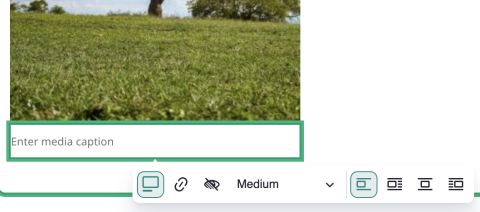
You can also add media to the page on its own separate content row. Visit the Page content type for more information.