When a landing page is created all of its child pages will be displayed as quicklinks at the top of the landing page, increasing visibility to the child pages.
Creating a Landing Page
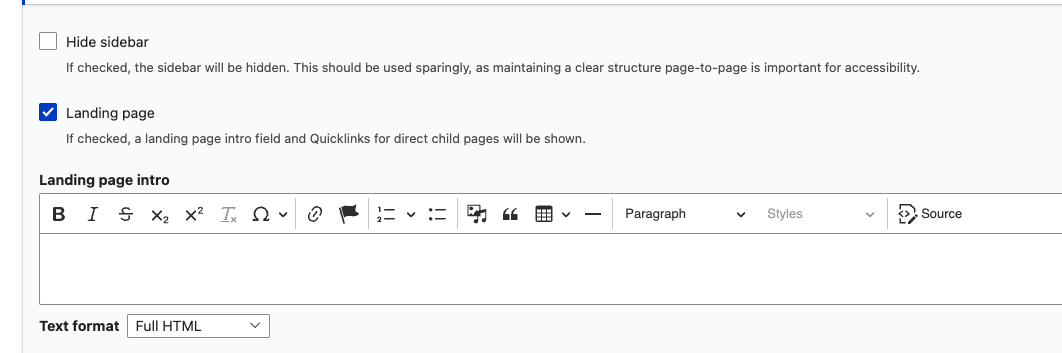
- Head to the “Advanced Settings” menu and select “Page Tools”
- Under "Page Tools" select the "Landing page" checkbox.
Adding Child Pages
- To add a child page to a landing page, simply add the page to the menu underneath the landing page
- For more information about menus, check out Managing Menus.
- Once the child page is under the correct menu item, head to the back end of the child page and navigate to “Advanced Settings” > “Page Tools”
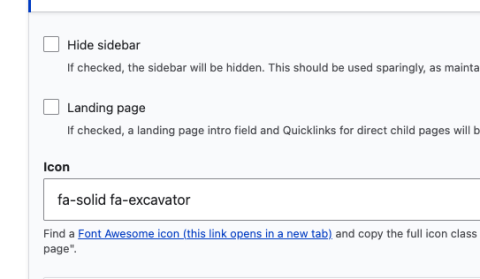
- In "Page Tools" scroll down to the "Icon" field. This is where you can add or change the icon associated with the child page.
- Change the icon by copying the desired code snippet on fontawesome.com, pasting the full code, and then removing everything except the text inside the quotation marks.
- Fore more information on how to add icons, head to Icons.
Image