All of the Quicklink icons are from FontAwesome. Font Awesome is a free, open-source library and toolkit with thousands of icons to choose from for you and your team.
Do's:
- Use the FontAwesome 6 Pro icon sets.
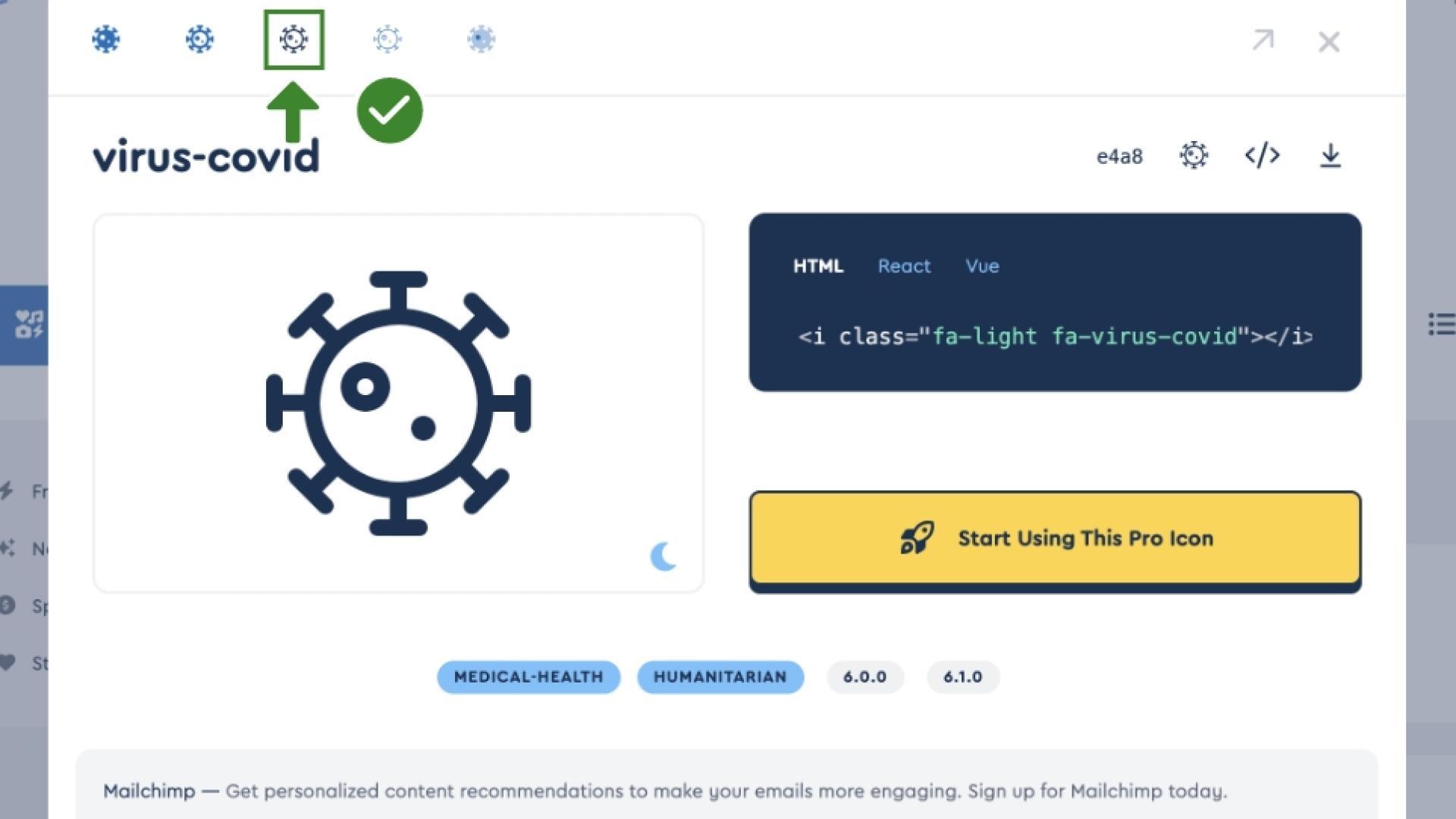
- Ensure you are using the correct icon weight for your site (i.e. Light, Regular, Solid). The weight used for FontAwesome icons should be consistent throughout your site. It is recommended you use the solid icon weight for improved accessibility.
- Try and match the subject matter with the associated link, but it's okay if there is no perfect match.
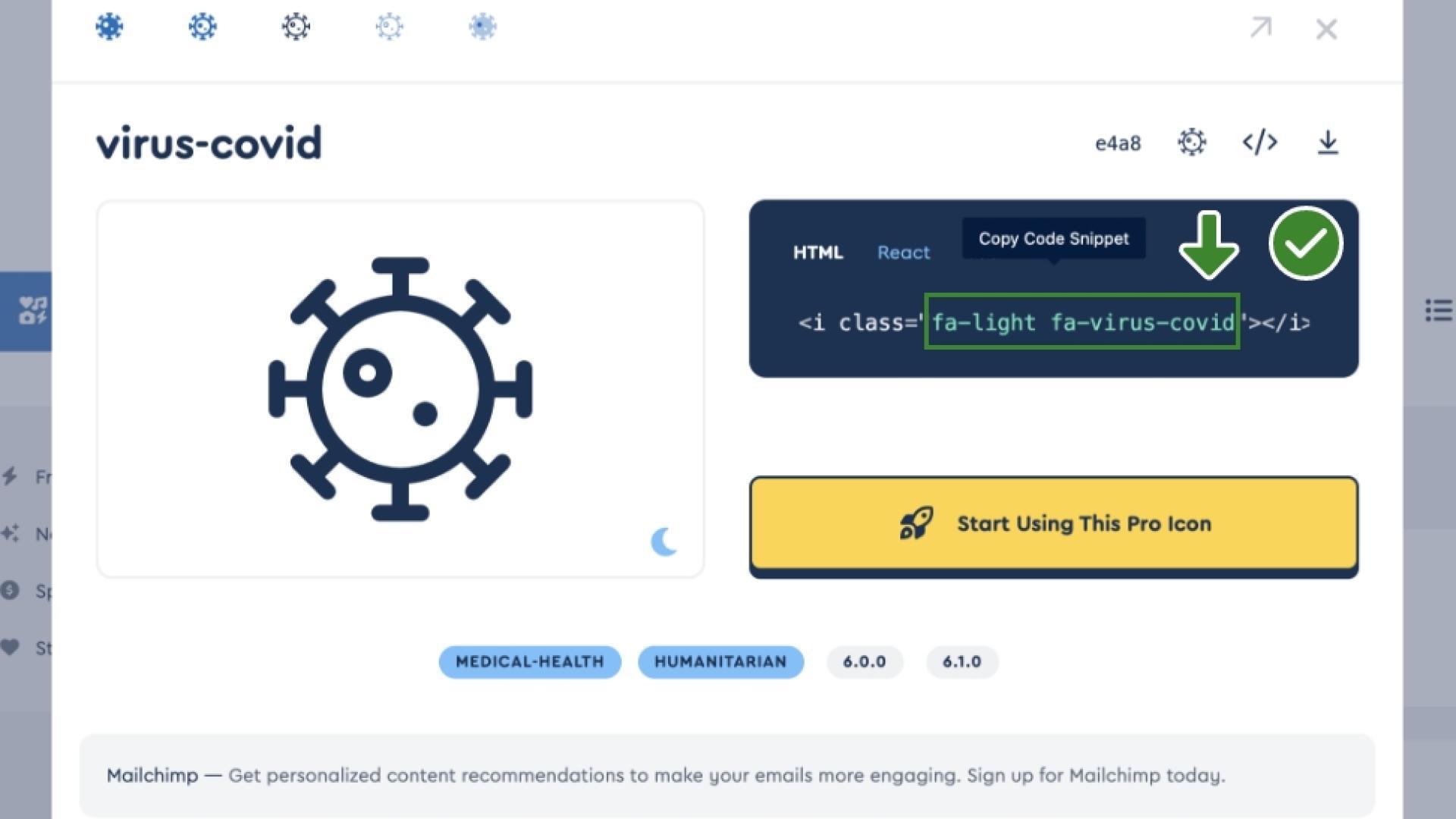
- Copy the fa class from the code snippet (e.g. fa-light fa-virus-covid) within FontAwesome. To copy and paste the code snippet into Drupal, remove <i class=””></i> from the snippet.
Dont's:
- Don’t try and use an icon from different locations. Icons should always be selected directly from FontAwesome.
- Don’t use the FontAwesome 6 Pro 'Brands' or 'Duotone' icon sets for regular icons (i.e. quicklinks).
- Don’t duplicate icons within the same area or page. FontAwesome Pro has over 16k+ icons to select from, with many variations.
- Don’t use icons that do not relate to the content.
How to use FontAwesome
Selecting the correct weight
Once you have found an icon that fits your subject matter, click it, and a pop-up box will appear. In this pop-up you can select the weight via the top ribbon as shown in the screenshot example below. Remember to always use the same weight for all icons.
Adding the icon in the CMS
Adding the icon is as easy as copy and paste. Simply copy the 'fa class code' from the icon pop-up box as shown in the screenshot below, and paste the code to the quicklink icon field.