
Website Contact Content Type
The Contact content type allows for the addition of contacts in the directory on the Staff Directory page.
Adding a Contact
Once logged in, from the Drupal Admin toolbar, navigate to Content > Add Content > Contact.
Input the following fields:
- Name
- Title
- Phone
- Additional numbers can be added using the Add another item button.
- Fax
Additional Options
- Contact Types / Tags
- First create the Contact Types within Taxonomy settings.
-
Tag your Contacts as desired. See example below.
Image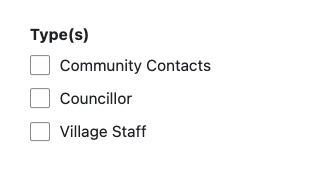
- Add a Contact view to any page, within content rows > Add View.
- Select 'Display' to choose how you want your contacts to appear; List, Compact List, or Cards
- Under 'Options' choose which "Type" of contact to include on this page.
-
Save your selection.
Image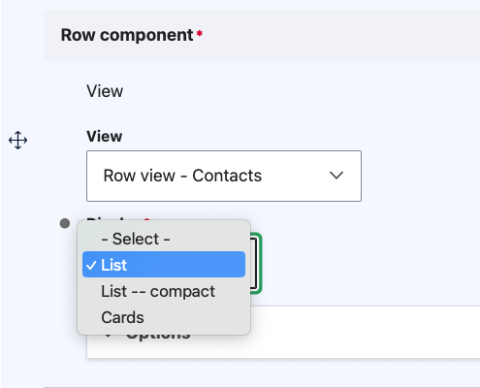
- Optional Graphics: Include additional/optional graphics in the Contact.
- Icon: Click on the Font Awesome linked text under the field. Then search for the appropriate icon/style that you wish to use for the tile. Make sure to follow the formatting described in the reminder text under the Icon field.
- Image: Select or upload the image you wish to display.
- Exclude from Directory: Email and website details may be excluded from the contact directory by selecting the Exclude from Directory checkbox.
Editing a Contact
- To edit a Contact, click on Content in the Drupal toolbar.
- Filter by content type Contact.
- Click to edit the Contact.
- Make sure you select Publish.
Advanced Page Settings
Settings for URL redirects, meta tagging and menu management can be found on the right-hand margin when editing or creating a new Page or content type. Visit Advanced Settings Instructions.
Engagement Contact Content Type
Adding a Contact
Once logged in, from the Drupal Admin toolbar navigated to Content > Add Content > Contact.
Input the following fields:
- Name
- Title
- Phone Number
- Additional numbers can be added using the Add Another Item button.
- Email
- Additional emails can be added using the Add Another Item button.
- Address
- Add the contact’s address here.
Editing a Contact
- To edit a Contact, click on Content in the Drupal toolbar.
- Filter by content type Contact.
- Click to edit the Contact.
- Make sure you select Publish.
Another demo contact
Phone
Office: 123-456-7890
Email
email@domain.com
Demo contact
Phone
Office: 123-456-7890
Fax
123-456-7890
Email
email@domain.com
Another demo contact
Phone
Office: 123-456-7890
Email
email@domain.com
Demo contact
Phone
Office: 123-456-7890
Fax
123-456-7890
Email
email@domain.com